
Set each installment’s due date and amount, then check the full amount is allocated.
1. Open Manage Payments
Go to Invoicing → Invoices. Check the customer and invoice balance, then open Manage Payments.
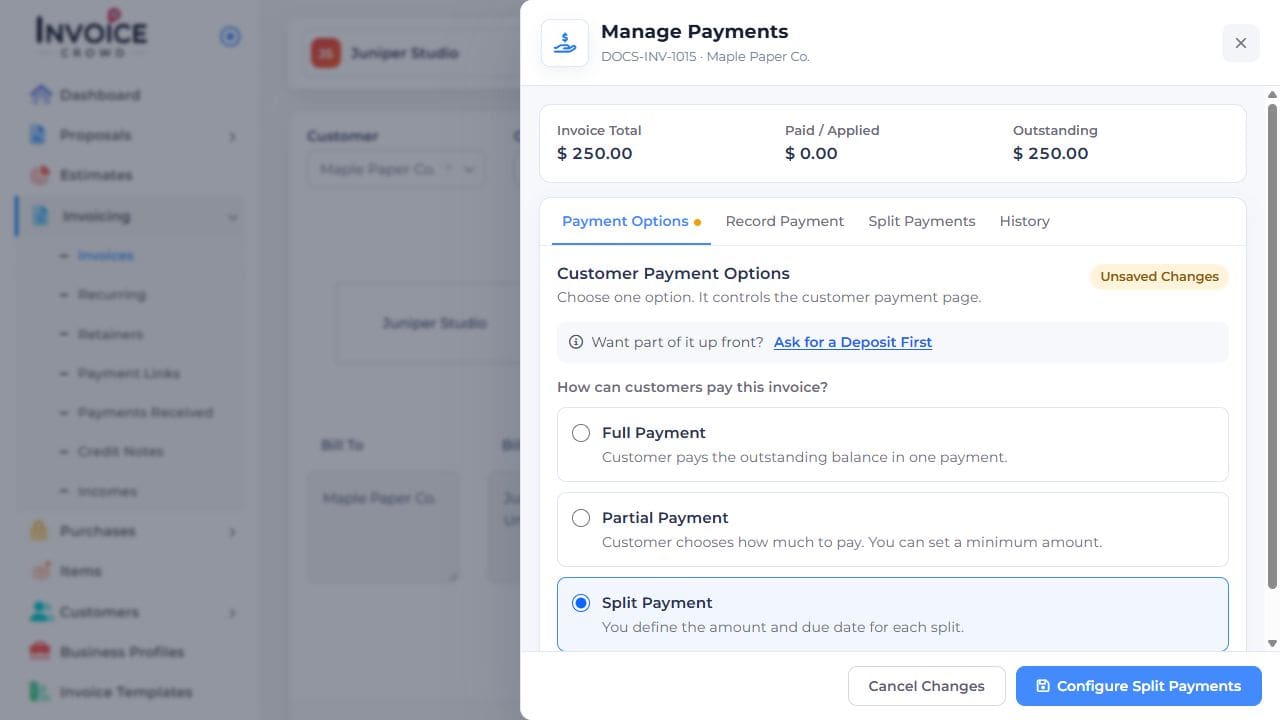
2. Choose Split Payment
In Payment Options, select Split Payment, then choose Configure Split Payments to open the schedule.
3. Set the installments
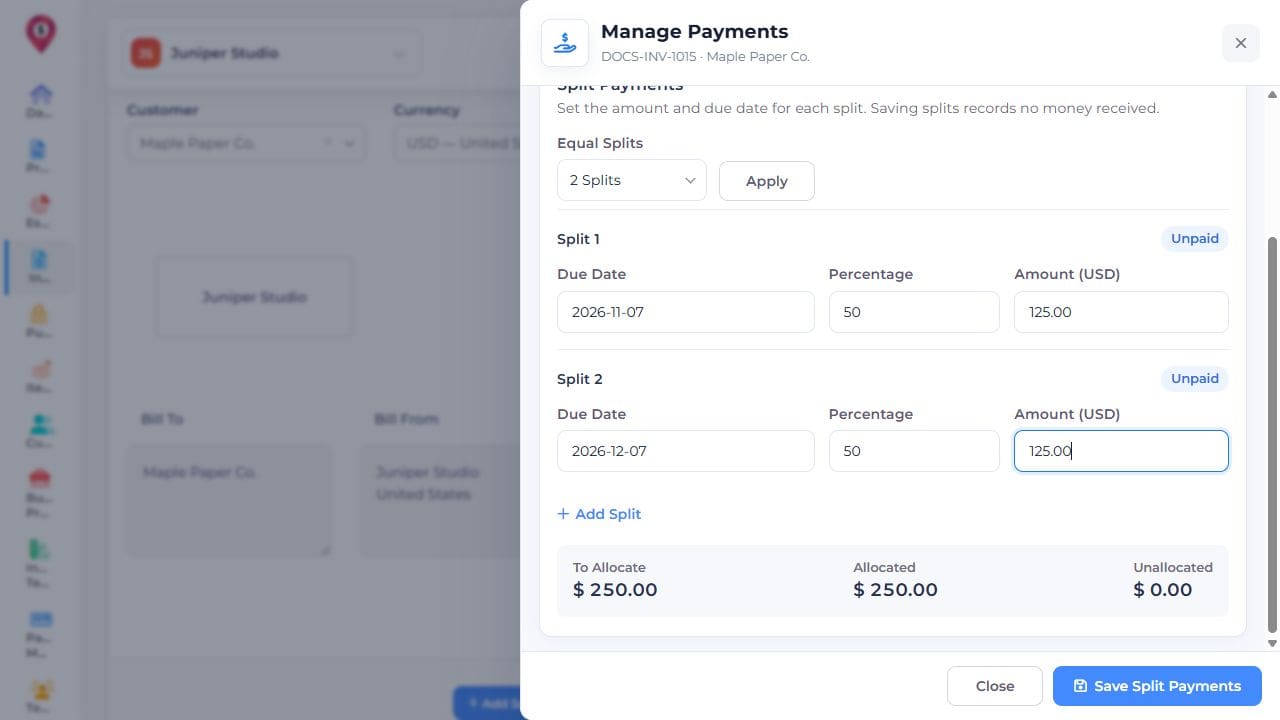
In Split Payments, enter each Due Date and its Percentage or Amount. Use Add Split for another installment, or choose Equal Splits and Apply for an equal starting schedule.
4. Check the allocation
Compare To Allocate with Allocated. Unallocated must be zero. Read any validation message; paid installments are protected. If a deposit exists, it stays first and the other installments cover the remainder.
5. Save Split Payments
Choose Save Split Payments. Reopen the schedule and preview the customer page to check dates and amounts. Saving the schedule records no money received.