
Save the expected cost of an estimate line separately from the customer’s selling price.
1. Enable Item Costs
Open the estimate and choose Options → Item Costs. Turn it on for this document.
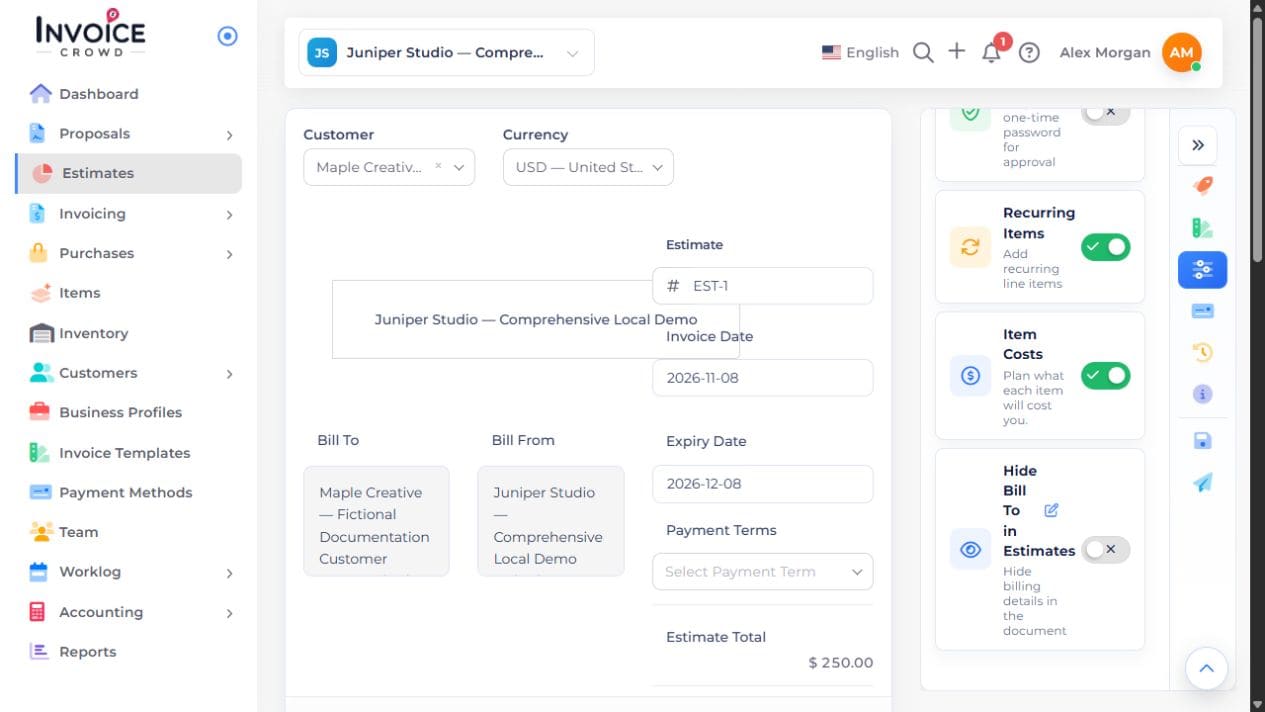
2. Open the line’s cost
Choose the C control for the intended item. The Planned Item Expense window is for the expected cost, rather than the customer price.
3. Enter the planned details
Choose Expense Category, optional Vendor, Planned Cost, Expense Date and Paid From. Review the expected total cost and the customer’s selling price independently.
4. Apply and save
Choose Apply to Line, then save the estimate. Reopen the cost details to check them and preview the customer document. Estimates do not post these costs to accounting.
5. Review again after conversion
If the estimate becomes an invoice, review the carried planned cost before confirming it as an actual cost. A planned estimate cost does not automatically become a posted expense.