
Start from the original invoice and choose the refund reason that matches what happened.
1. Review the original invoice
Open the customer invoice and check its payments under Manage Payments → History. If no money arrived and a payment was entered by mistake, review its supported reversal instead of recording a refund.
2. Open Refund
Choose the invoice’s Refund action. Select The customer cancelled all or part of the order for a reduced sale, or The customer paid too much for excess money while the sale remains valid.
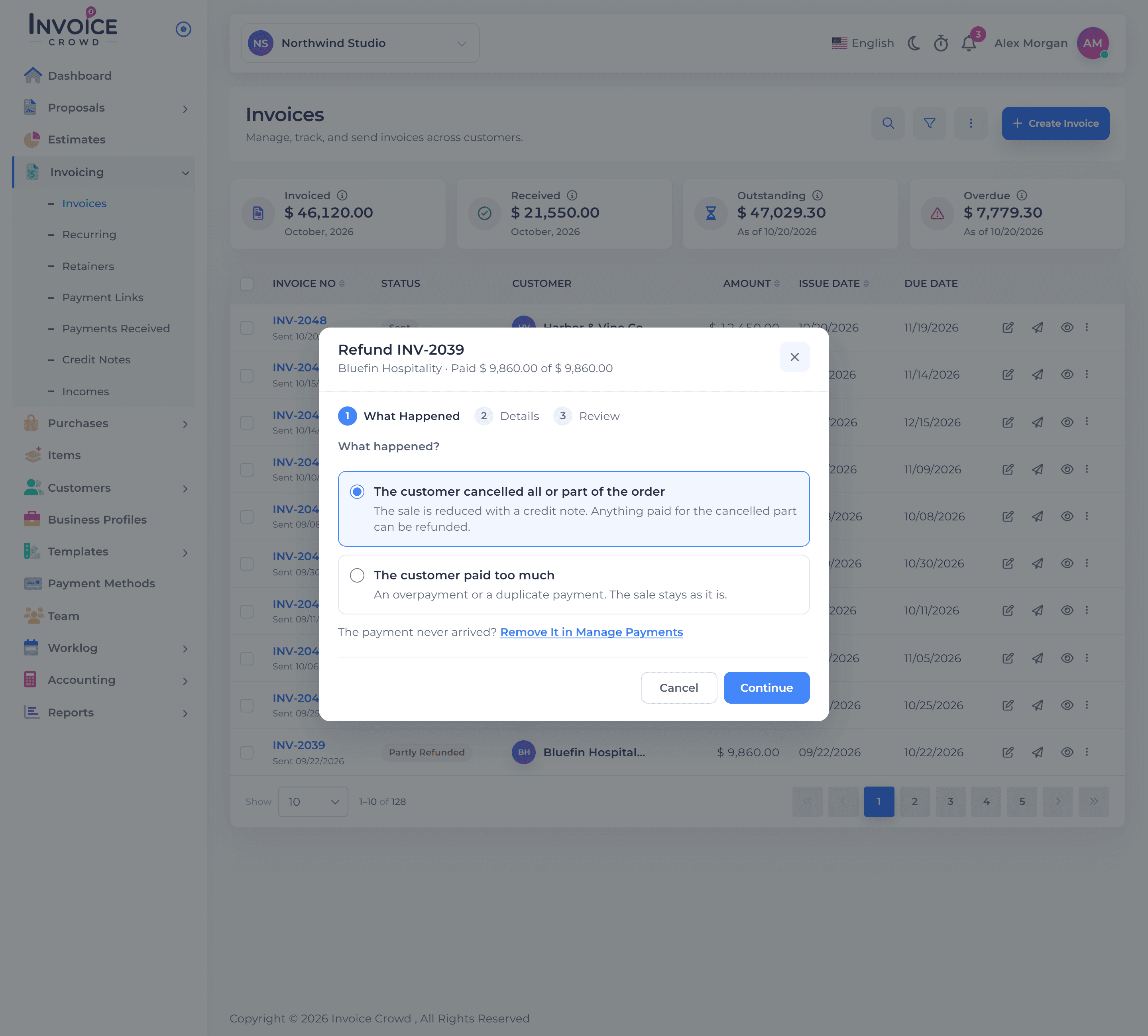
3. Review what is being returned
For a cancellation, choose Everything, An Amount or Some Lines when offered. Review quantities, tax and the paid portion. For an overpayment, check the unused excess available to return.
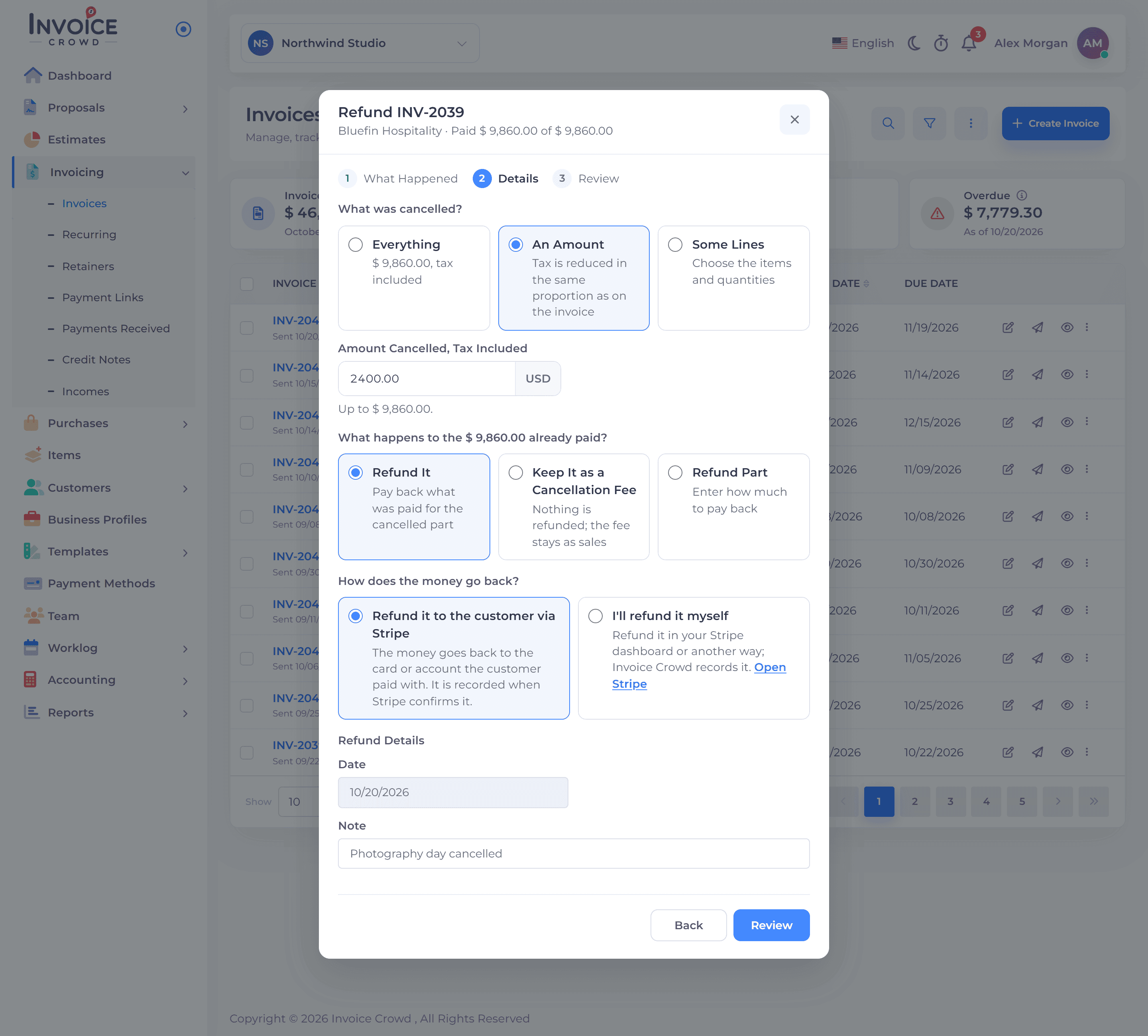
4. Choose the return method
Read the eligible online refund choice or I’ll refund it myself. A manual refund records an actual return outside Invoice Crowd. Check the amount, date, Paid Back From and note, then read the final review before confirming.
5. Check the saved outcome
Reopen the invoice’s payment history and related credit or refund. Check the remaining invoice balance and any unused customer credit. For a refund of a standalone unused credit note, open that credit note’s Refund action instead.