
Set a payment term so new invoices start with a due date relative to their issue date.
1. Open Document Options
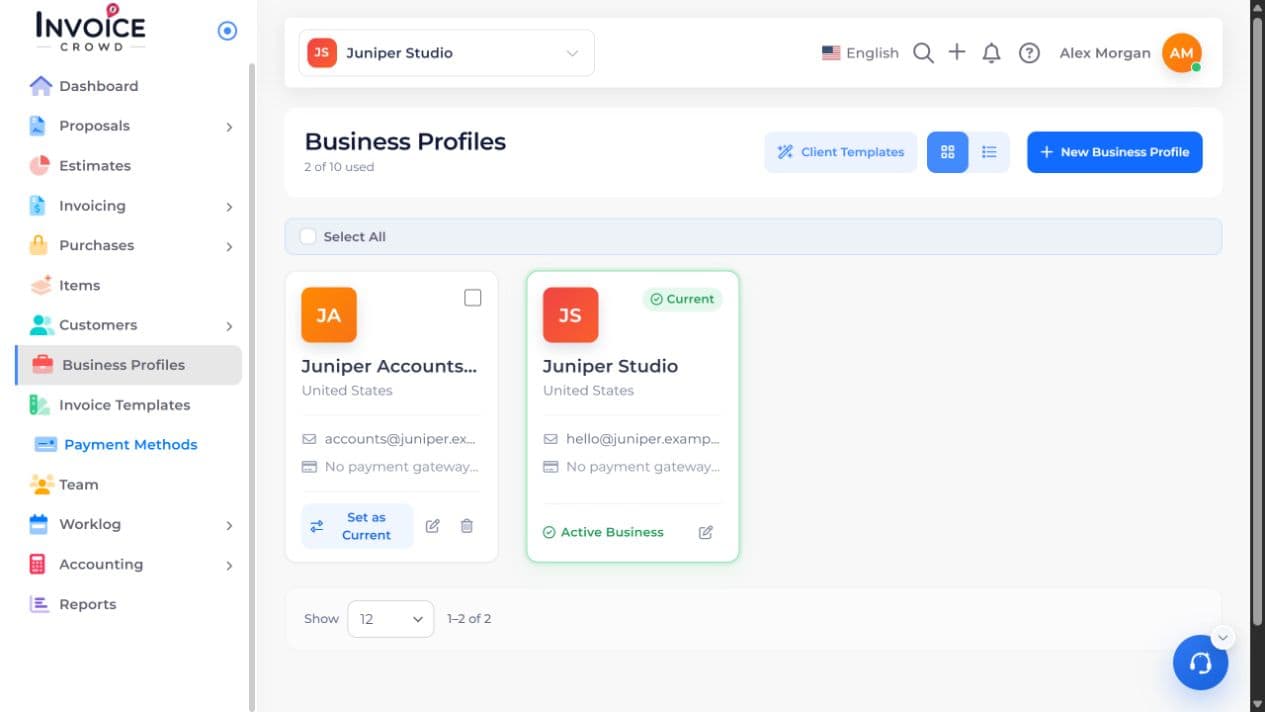
Open Business Profiles. Select Edit beside the business you want to change, then choose Document Options, then General.
2. General
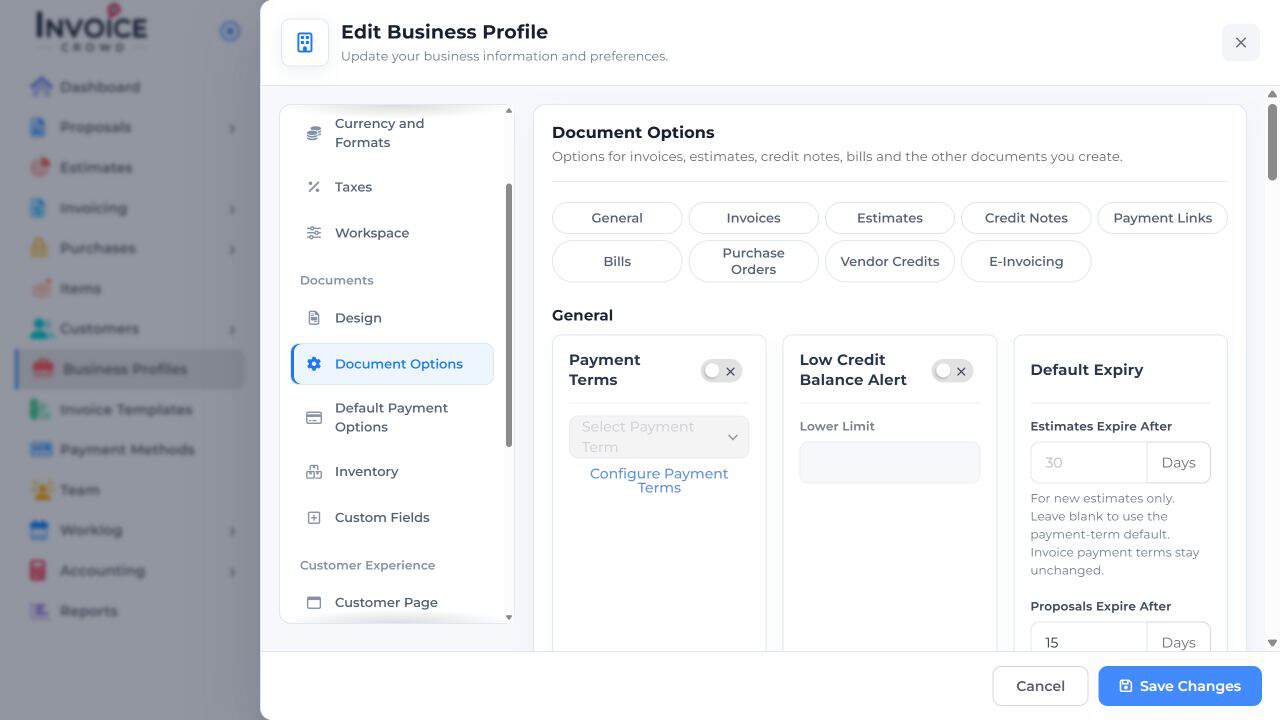
Under General, turn on Payment Terms. Choose a term such as Net 30 if it matches your agreement.
3. Set your preference
If the term you need is missing, select Configure Payment Terms and review the number of days before choosing it.
4. Save Changes
Select Save Changes. Start a new invoice and check the issue date and due date together. Estimate expiry is a separate setting.