
Create an invoice for an accepted estimate and avoid invoicing the same estimate twice.
1. Open the accepted estimate
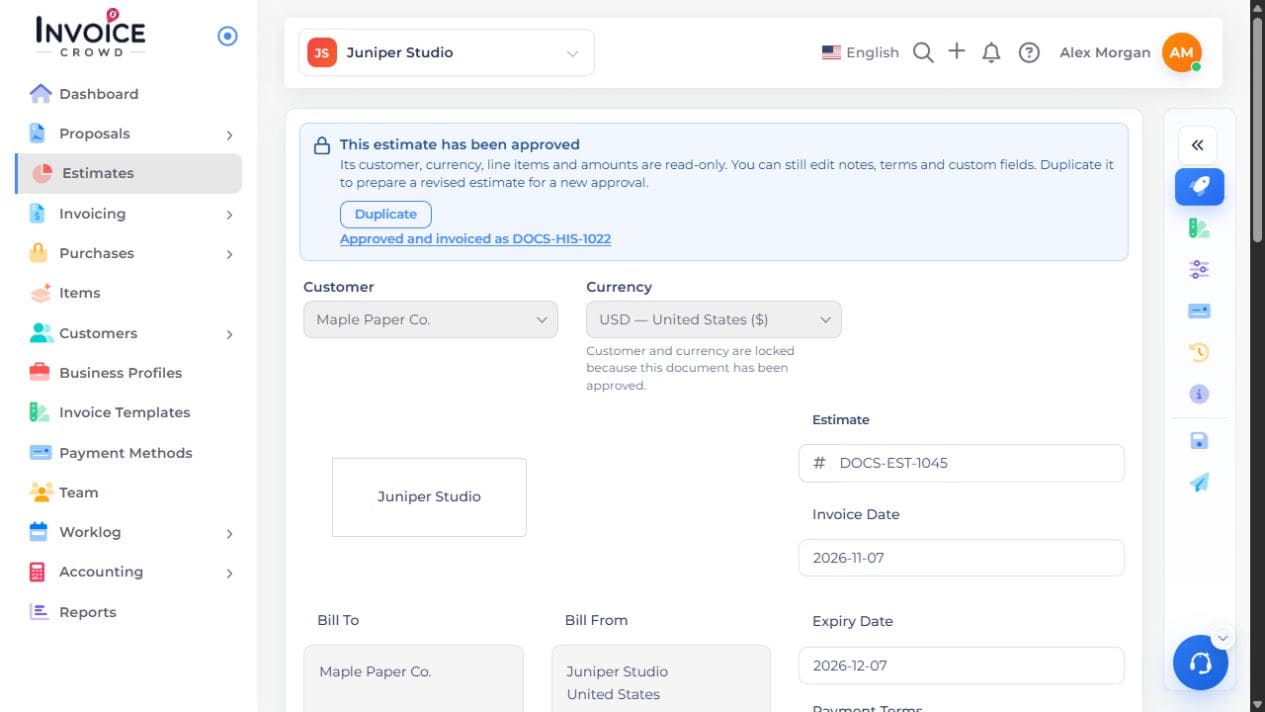
Go to Estimates and open the estimate. Check that its status is Approved. If the banner says Approved and invoiced as, open the linked invoice instead of converting again.
2. Convert if needed
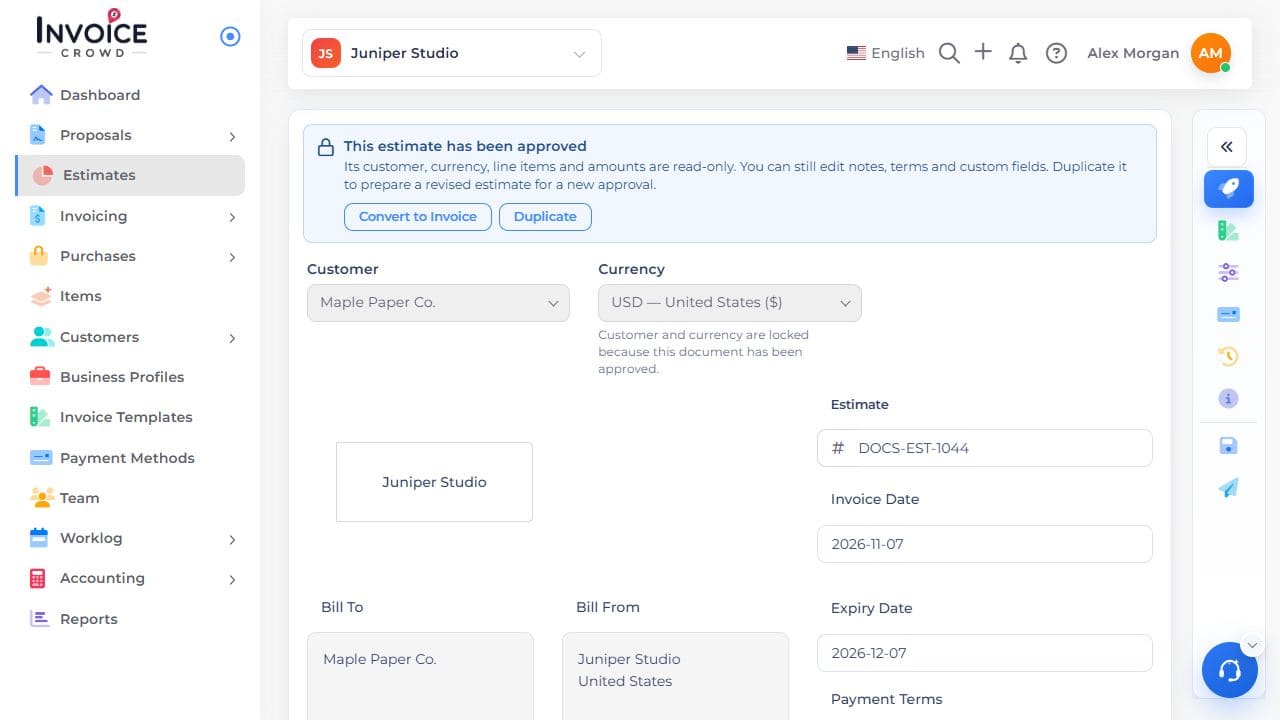
If the approved estimate has no linked invoice, choose Convert to Invoice in its approval banner. This creates the invoice and opens its editor immediately. Conversion does not itself send the invoice.
3. Review the invoice
Review the new invoice’s customer, accepted items, quantities, tax, issue date and due date. Save any changes and preview it before choosing Send.