
Save a product or service so you can reuse it on future documents.
1. Start an item
Select the business you want to use, then open Items and choose New Item.
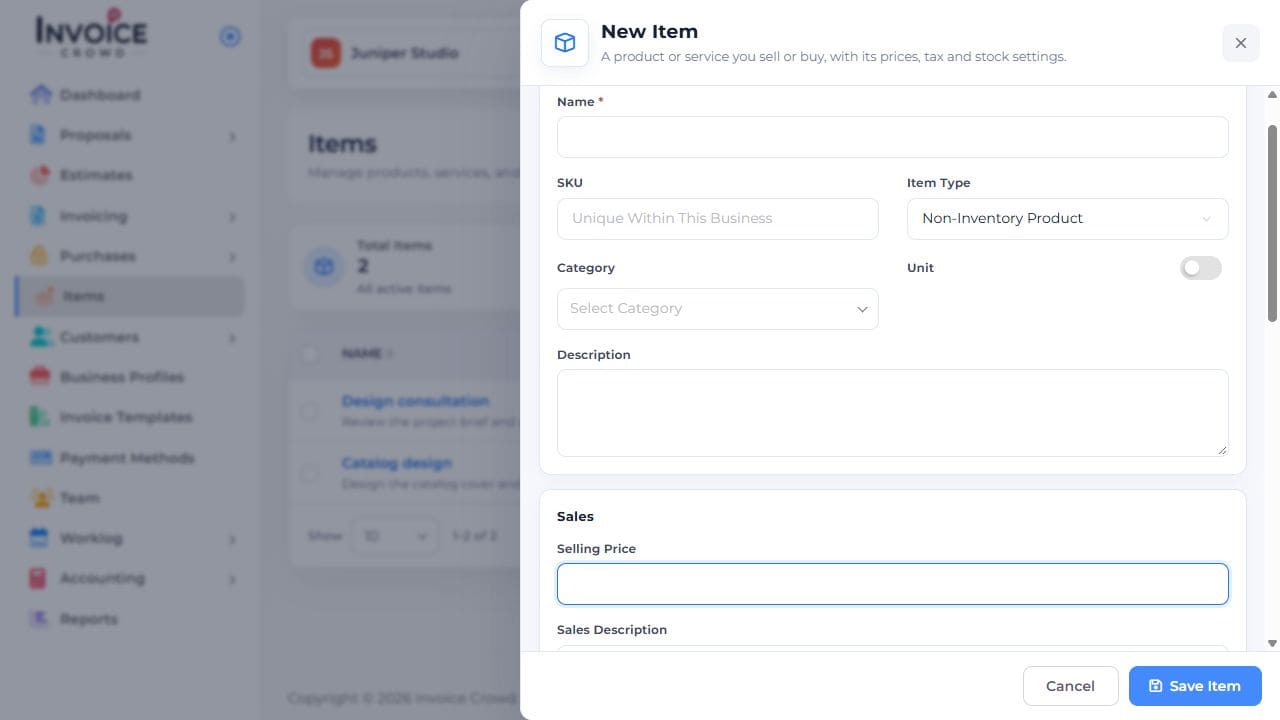
2. Enter the item details
Enter Name. Under Item Type, choose Non-Inventory Product, Digital Product, or Service. Inventory Product is also available when inventory tracking is enabled for the selected business. Enter Selling Price and review the optional SKU, Category, Unit, Description, and taxes.
3. Set up inventory when needed
For stock control, first turn on Inventory Tracking and set Inventory Start Date under Business Profile → Inventory for the selected business, then choose Save Changes. If tracking is off, Open Inventory Settings in the item form opens that business’s Inventory tab. Return to New Item, choose Inventory Product, and review Track Inventory for This Item. If you already hold stock, enter Opening Stock and Opening Stock Rate per Unit. Review Inventory Asset Account and Cost of Goods Sold Account, and set Reorder Point if needed. Once the item has stock transactions, tracking cannot be turned off.

4. Save and reuse
Choose Save Item. Add the item to a draft invoice and confirm its description, quantity, and rate before sending.